
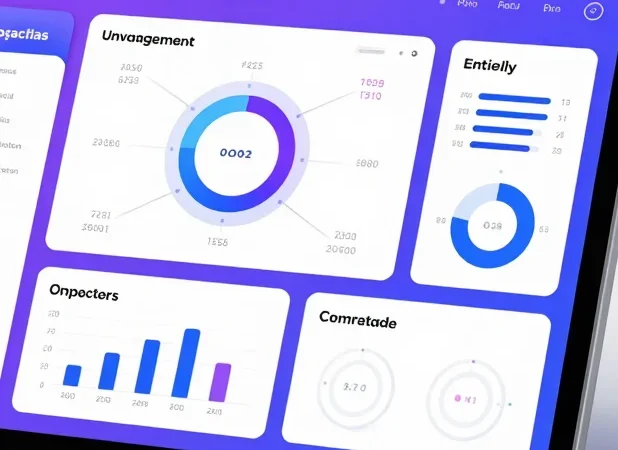
Explainer videos are one of the most effective ways to communicate complex ideas. Whether you are teaching a concept, pitching a product, or breaking down data, the right visuals can make the difference between a video people watch and a video people remember. This is where infographic templates become invaluable.
Infographic templates give you professionally designed charts, diagrams, timelines, and icons that you can customize in minutes. Instead of hiring a motion graphics designer or spending days learning animation software, you get polished visuals ready to drop into your videos.
Why Explainer Videos Need Strong Visuals
People process visual information far faster than text or speech alone. When you pair your narration with clear graphics, viewers understand and retain more. A well-placed animated chart can explain in seconds what would take minutes of talking.
Strong visuals also keep viewers engaged. Talking-head videos or static slides lose attention quickly, but dynamic infographics — moving charts, animated timelines, popping icons — give viewers something to look at while they listen, dramatically improving watch time.
What Are Infographic Templates?
Infographic templates are pre-built, customizable graphic layouts designed for presenting information visually. They typically include bar charts, pie charts, process flows, comparison layouts, timelines, maps, and icon sets — all styled to look professional and cohesive.
The best templates are fully editable: you can change colors to match your brand, swap in your own data and text, and adjust layouts without breaking the design. Many are built for video tools, with animations already applied so your graphics move smoothly on screen.
Choosing Templates for Your Explainer Videos
Not every template suits every video. Here is how to pick the right ones:
Match Your Brand Style
Choose templates with color schemes and design styles that complement your channel. Consistent visuals across videos build recognition — viewers should be able to identify your content at a glance.
Prioritize Clarity Over Decoration
The purpose of an infographic is to clarify, not to impress with complexity. Pick clean, readable templates with plenty of white space. If a template looks busy in the preview, it will look worse with your data added.
Check Customization Options
Make sure you can easily edit text, colors, fonts, and data points. Templates that lock you into specific content will frustrate you. Our Animated Infographics Bundle is built for full customization.
Customizing Templates Like a Pro
Start by replacing placeholder text with your actual script points — keep text short and punchy. Update colors to your brand palette, using no more than three main colors for cohesion. Replace generic icons with ones relevant to your topic.
Time your graphics to your narration. Each infographic should appear exactly when you mention the concept it illustrates. This synchronization is what separates amateur explainers from professional ones.
Common Mistakes to Avoid
The biggest mistake is cramming too much information into one graphic. If viewers cannot absorb it in a few seconds, split it across multiple visuals. Another common error is inconsistent styling — mixing templates from different packs creates a disjointed look. Stick to one cohesive set per video.
Finally, always preview your infographics at actual video size before finalizing. Text that looks fine in your editor might be unreadable on a phone screen, where most viewers watch. Test your graphics on multiple devices to ensure they work for everyone. Taking a few minutes to check readability can dramatically improve how professional your final video feels.
Start Creating Better Explainers
Infographic templates remove the biggest barrier to professional explainer videos: design skill. With the right templates, anyone can produce visuals that look like they came from a studio. Browse our shop to find infographic bundles and start elevating your explainer videos today.